Camtasia Captioning
The purpose of this document is to educate users about federal and state legislation and CSU policies in place to ensure technology resources are accessible to all users.
What is Captioning?
Captioning is an alternative text that transcribes what you may hear or see, typically for users with a visual and/or hearing impairment. Captioning is not only users with disabilities, it can also help users whose primary language is not English, or help users to learn special terminologies.
Captions only work in accessible video or audio players that allow the user to enable captions. This is the reason your video SHOULD BE uploaded to a streaming service such as YouTube or Vimeo. Videos just uploaded into Canvas or Google drive do NOT have a player, and they may also be difficult for your students to access depending upon what device they are using!
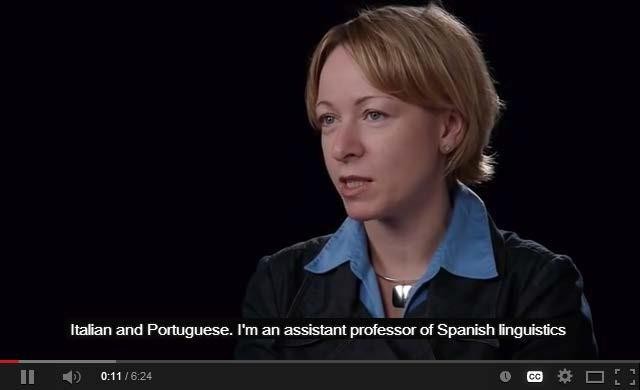
When captions are enabled in a player, however, the user will be able to view a transcript that is timely synced with the media playing. Here’s a screenshot of what a video may look like when captions are enabled:
Why is Captioning Important?
Captioning is not only important because it assists users with disabilities, but it is also the law. Specifically, the Americans with Disabilities Act of 1990 (ADA) and Section 504 of the Rehabilitation Act of 1973.
In addition, the Accessible Technology Initiative (ATI) from the Chancellor’s Office has set out a commitment to ensure all technology resources and services are available to all CSU affiliates through Executive Order 926 (EO 926).
Briefly, these laws and policies are in place to help remove the barriers created by technology that prevent people with disabilities equal access to information such as programs, services, or activities.
The Universal Design for Learning (UDL) is another approach to consider when creating course materials accessible. The goal of UDL is to promote creative design of barrier-free or accessible instructional materials, activities and assessments that will reach out to as many students possible, regardless of their learning styles, cognitive, physical or sensory abilities.
EVERYONE, even people without disabilities, benefit from captions in a variety of situations. For example, captions are often turned on in noisy environments, like airports, gyms, and coffee shops.
How to Make Camtasia Videos Accessible
You have several options to make your Camtasia video accessible, and your choice might be influenced on whether you followed a transcript while recording. Users that do not follow a transcript can use the speech-to-text options offered by YouTube or Camtasia, but you still may need to make edits depending on the clarity of the audio used in your video and the accuracy.
Here are your options:
Did you follow a written transcript?
Yes — I followed a written transcript
Then upload the video to Youtube and synchronize your transcript. (See YouTube Help link below for more information.)
No — I did not follow a written transcript
- Use Camtasia’s speech-to-text captioning feature, make any necessary corrections, and then upload the video and captioning file to Youtube or Vimeo. (NOTE: Speech-to-text is available on the Windows version of Camtasia, NOT on Mac version. For uploads to Vimeo, you will have to export your captions as an SRT file and upload that separately. YouTube does this for you automatically, Vimeo requires a couple extra steps.)
- Upload to Youtube for auto-captioning, and then edit the captions to make any needed corrections.
- Request SJSU Captioning Services – Fill out the request form to get captioning help, but you will need to make your request in a timely fashion.
Additional Resources
- CFETI Camtasia Page (For resources, tutorials, workshops, & the request form)
- YouTube Help: Add your own subtitles & closed captions